Enable widget on current theme
- In Online Store, open Themes tab
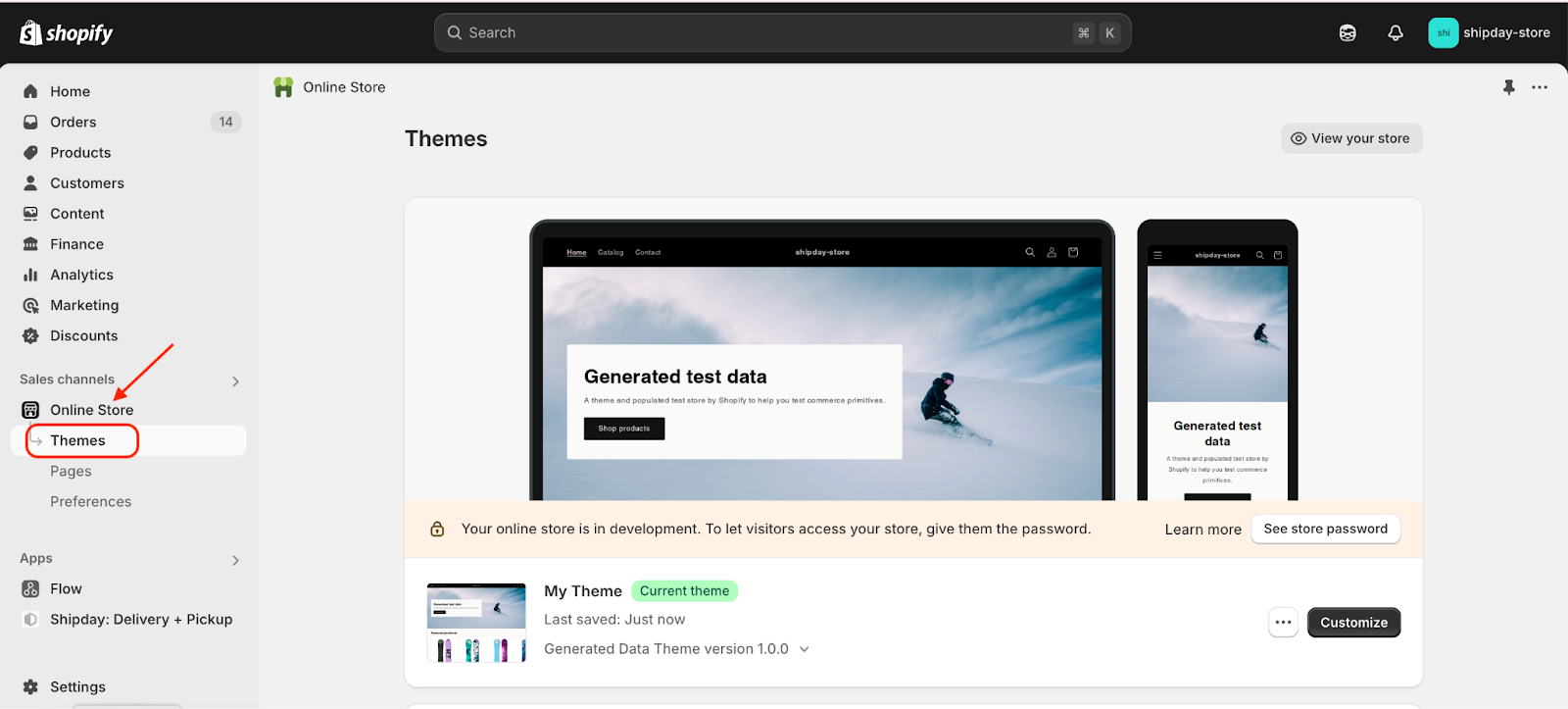
- Click on the Customize button under current theme
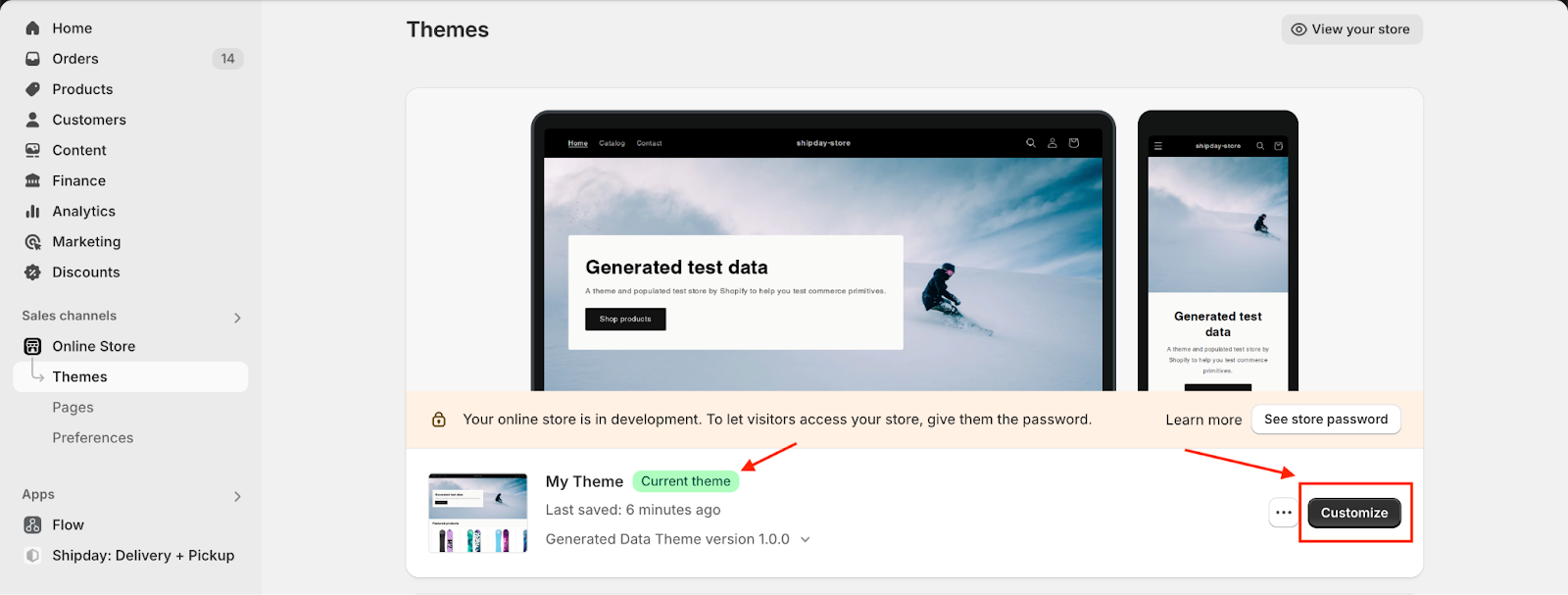
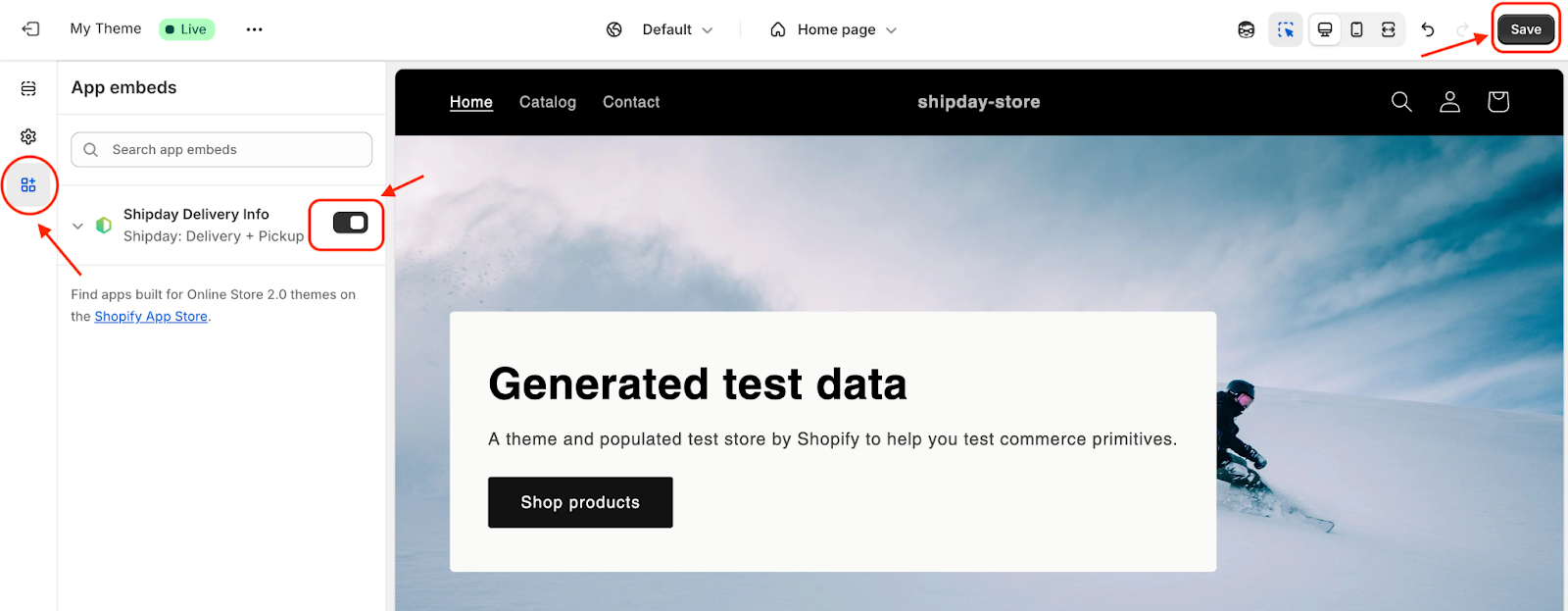
- Click on the “App embeds” icon at the left corner and enable “Shipday Delivery Info” widget. Then click “Save” button at the top right corner like below image.
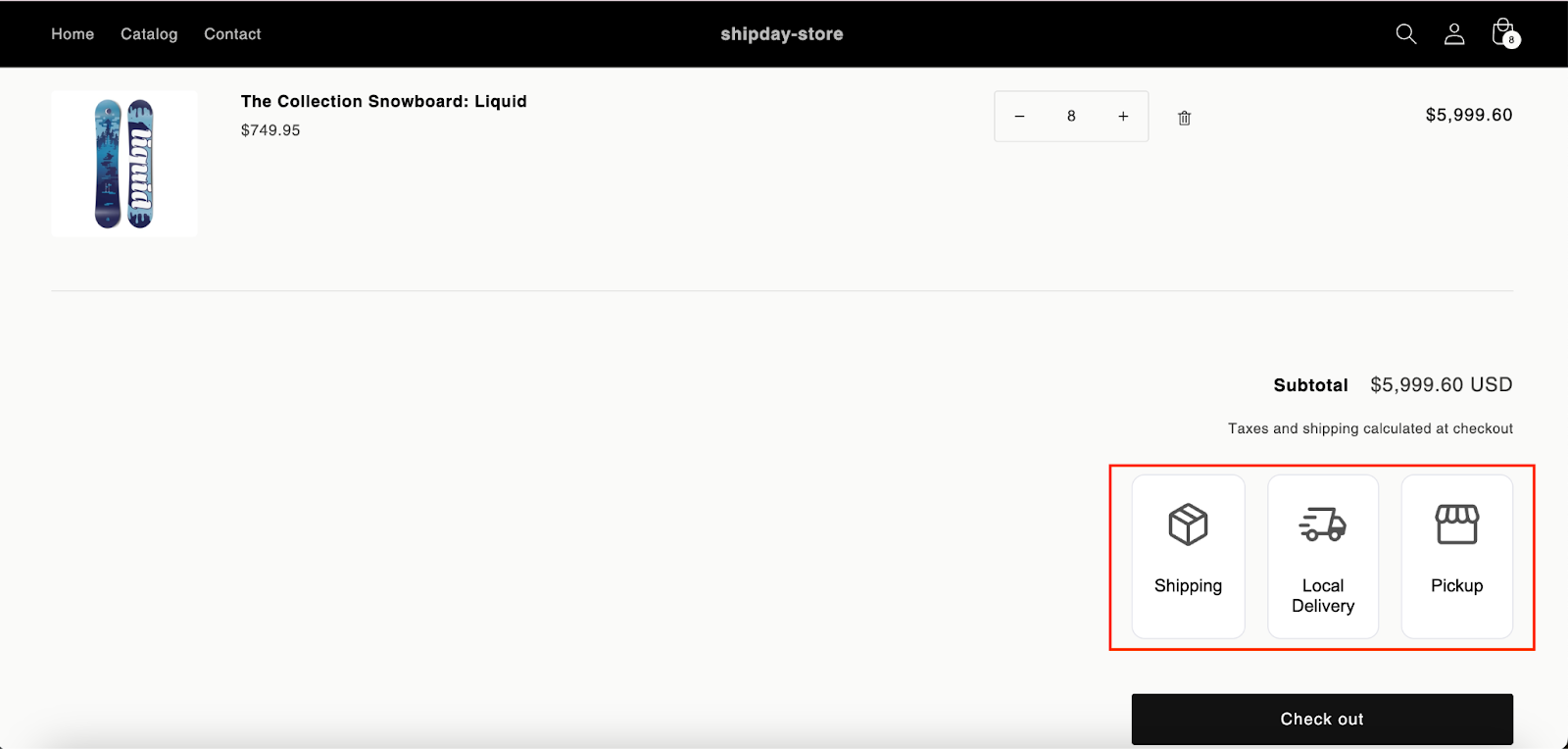
- Now go to your store and add some items in the cart and go to the cart page. You should see your configured delivery methods before the checkout button.
- If you don’t see the above custom delivery methods in the cart page, then add this custom code snippet
<div id="checkout-methods-selector"></div>like below images:
5.1 First select your current theme and click on the Customize button
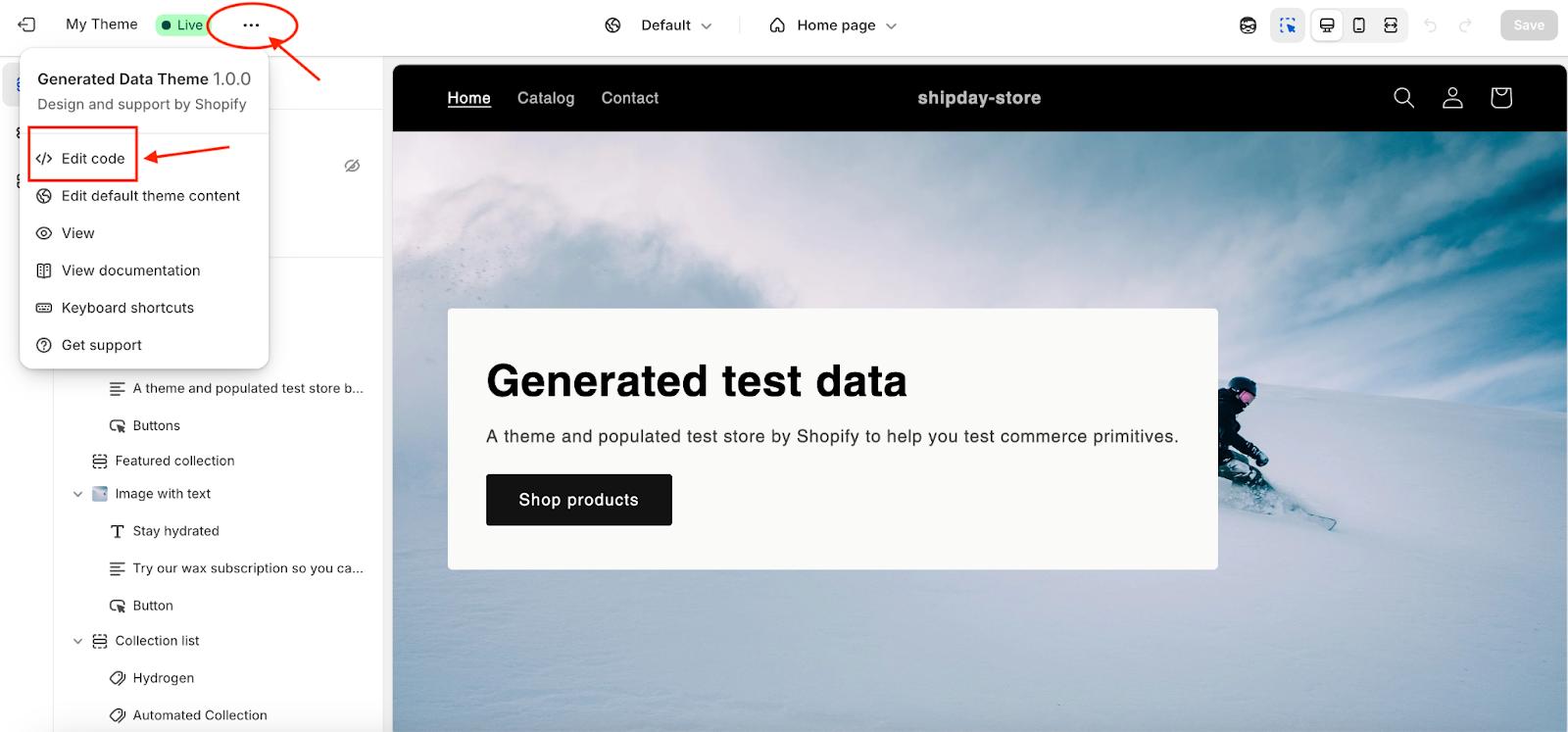
5.2 Then click on the “...” at top and then click “Edit code” like below image
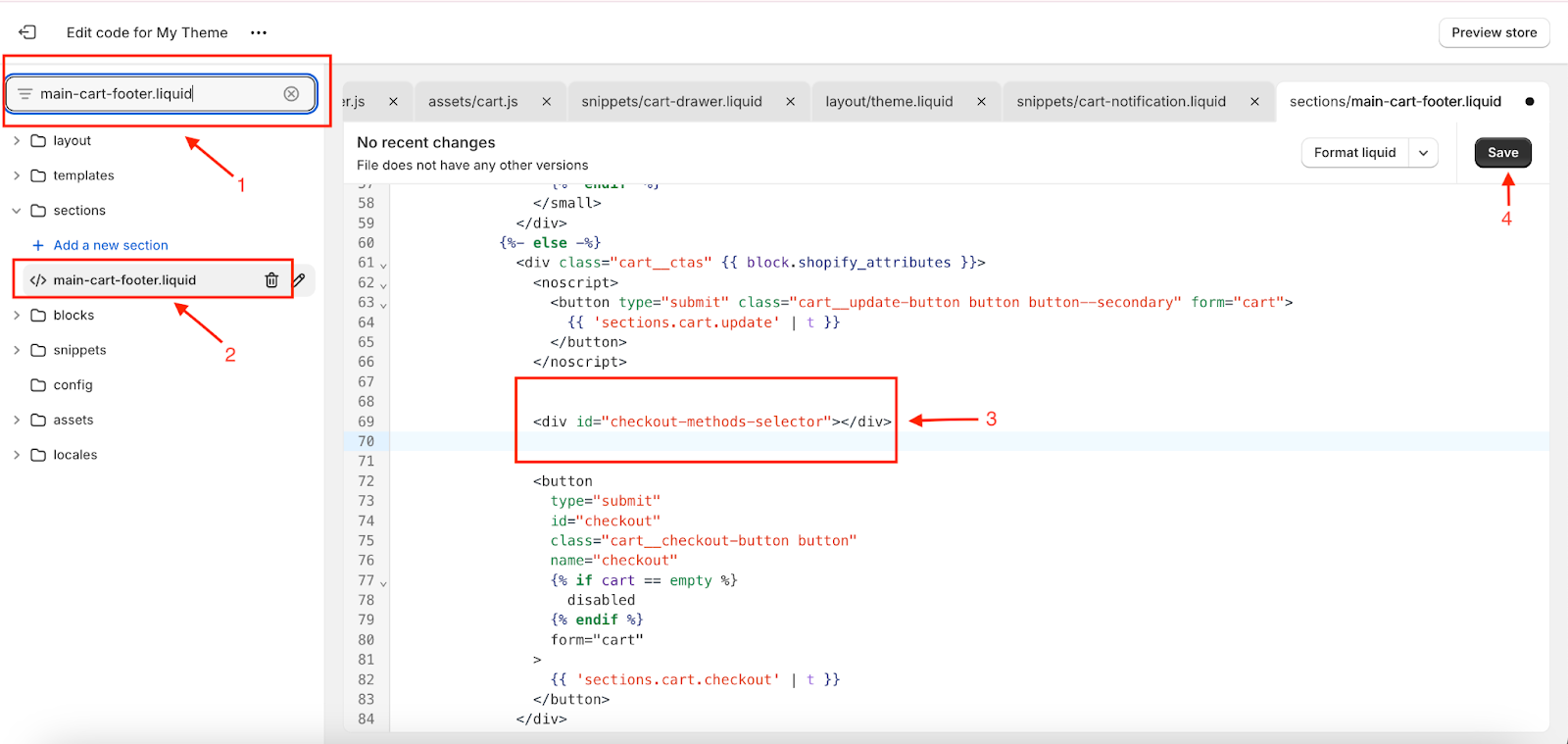
5.3 Then from the search bar at the top left corner find “main-cart-footer.liquid” and click on the “main-cart-footer.liquid” search result. Add the code <div id="checkout-methods-selector"></div> just before the checkout button and hit Save like below image
Your delivery methods should appear now before the checkout button in the cart page.
If your delivery options text is getting blurred or you want to change the text color, then follow step 6
6.1 Follow Step 1 and Step 2 of this tutorial to go to your current theme and click on the Customize button.
6.2 Then click on the “Theme Settings” from the left bar (1) and search for the “Custom CSS” section (2). Put this below custom CSS code in the box (3):
.sd-delivery-button {
  color: black !important;
}
Then click the “Save” button in the top right corner. After that, refresh the cart page.
Need help? Email support@shipday.com