Store pickup configuration
Enable store pickup
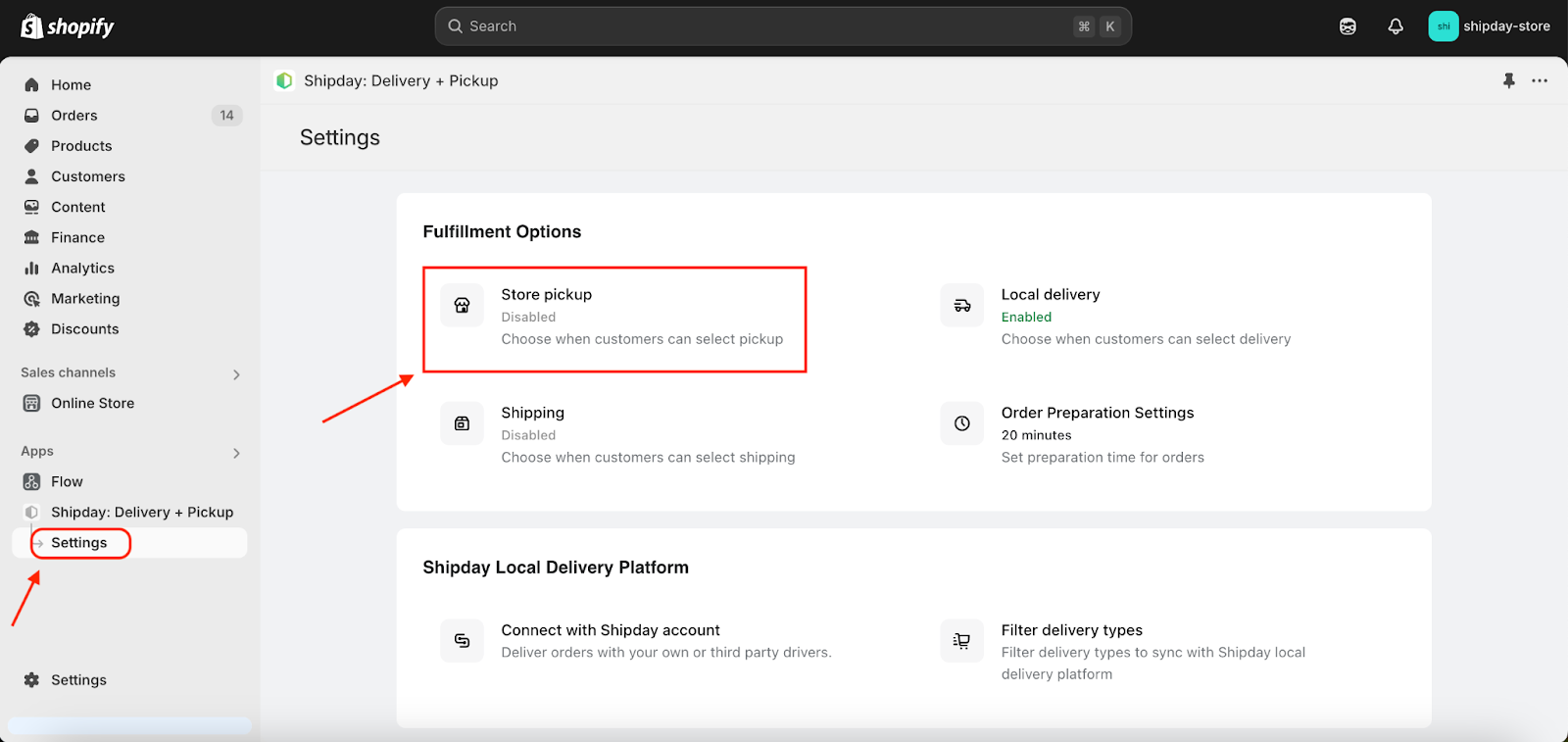
- Click Settings, then Store pickup.
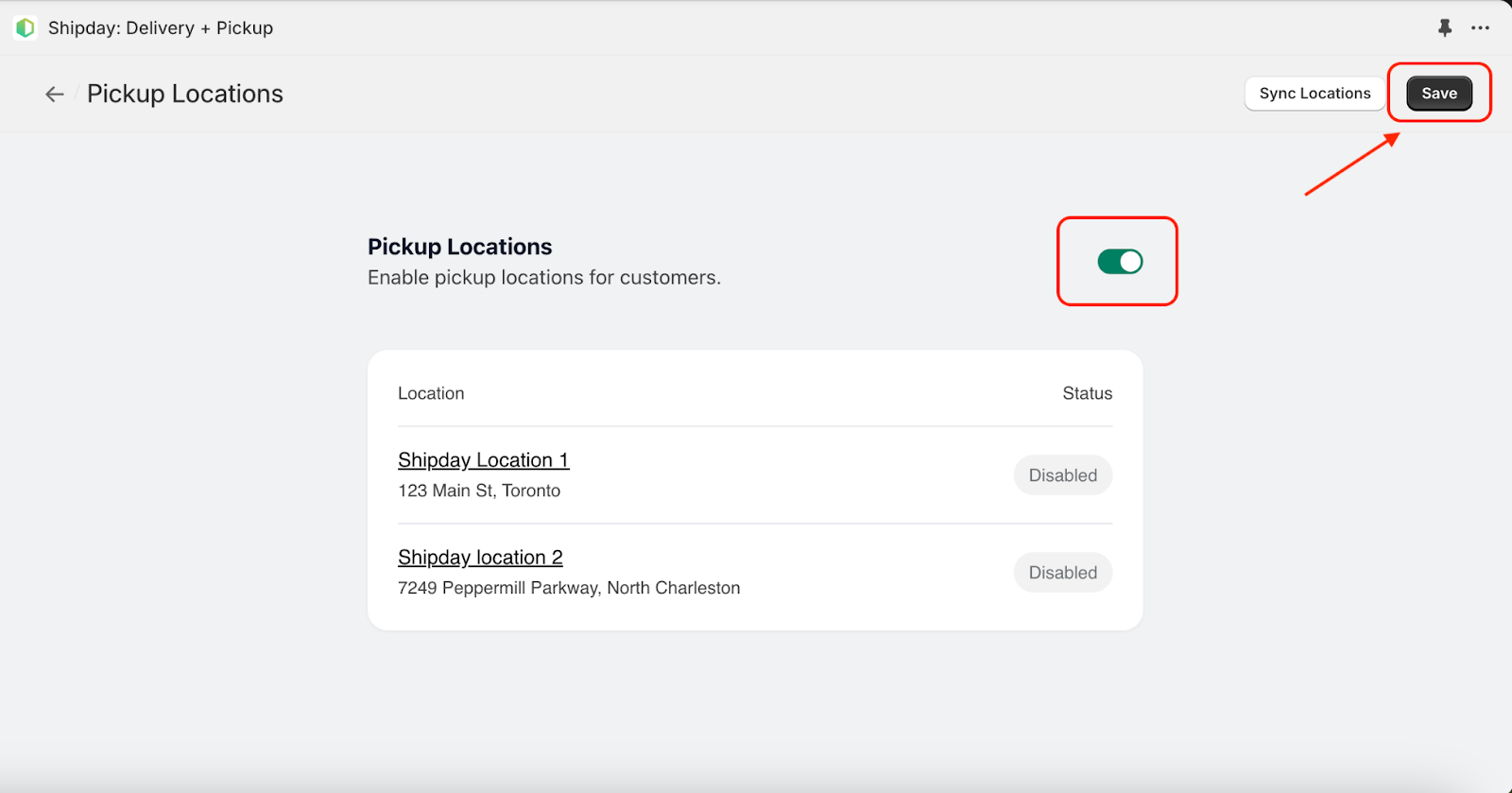
- If store pickup is disabled, click on toggle button to enable and click save button at right top corner
Sync store location
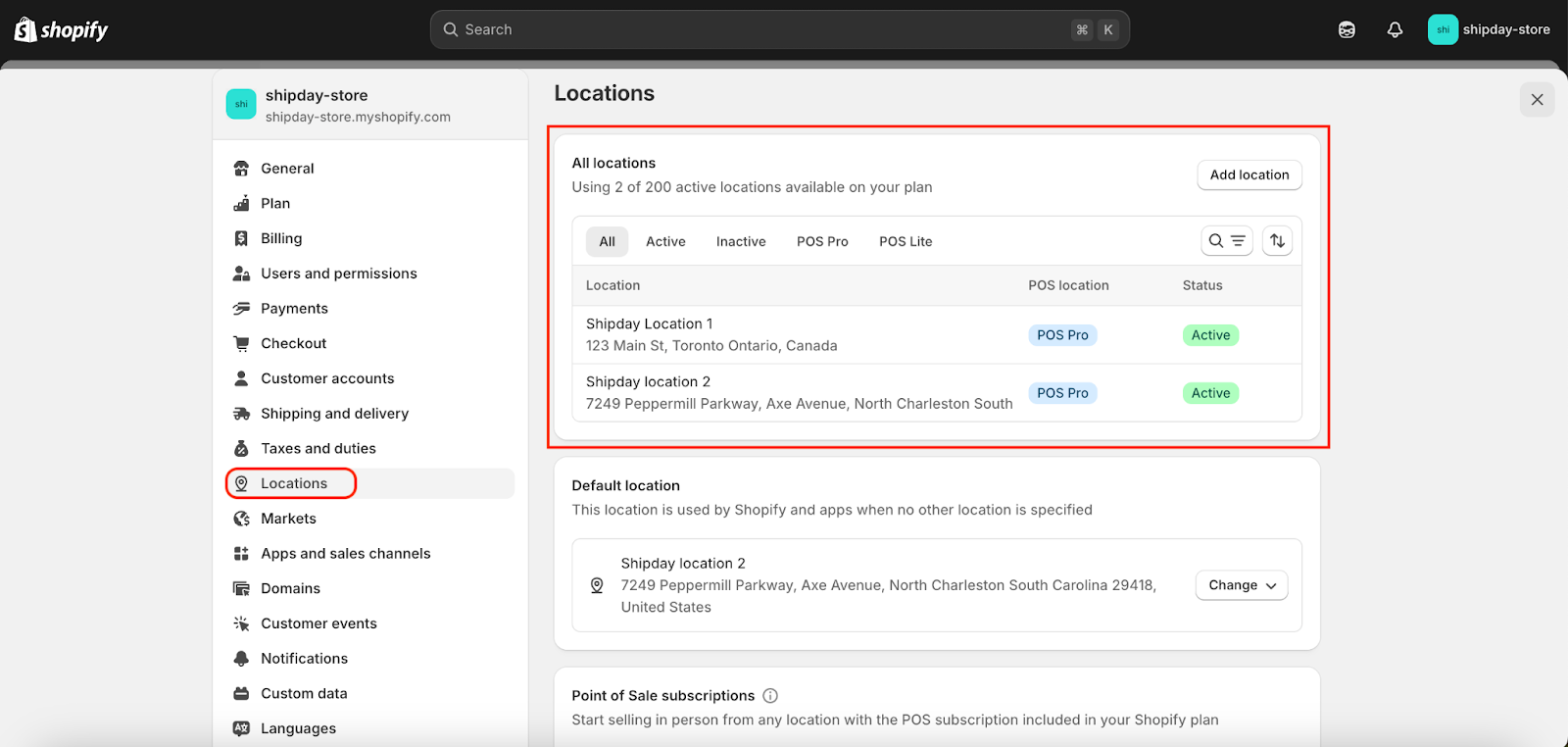
Shipday utilizes Shopify locations.
- First manage (add/edit) your store locations through Shopify Settings -> Locations.
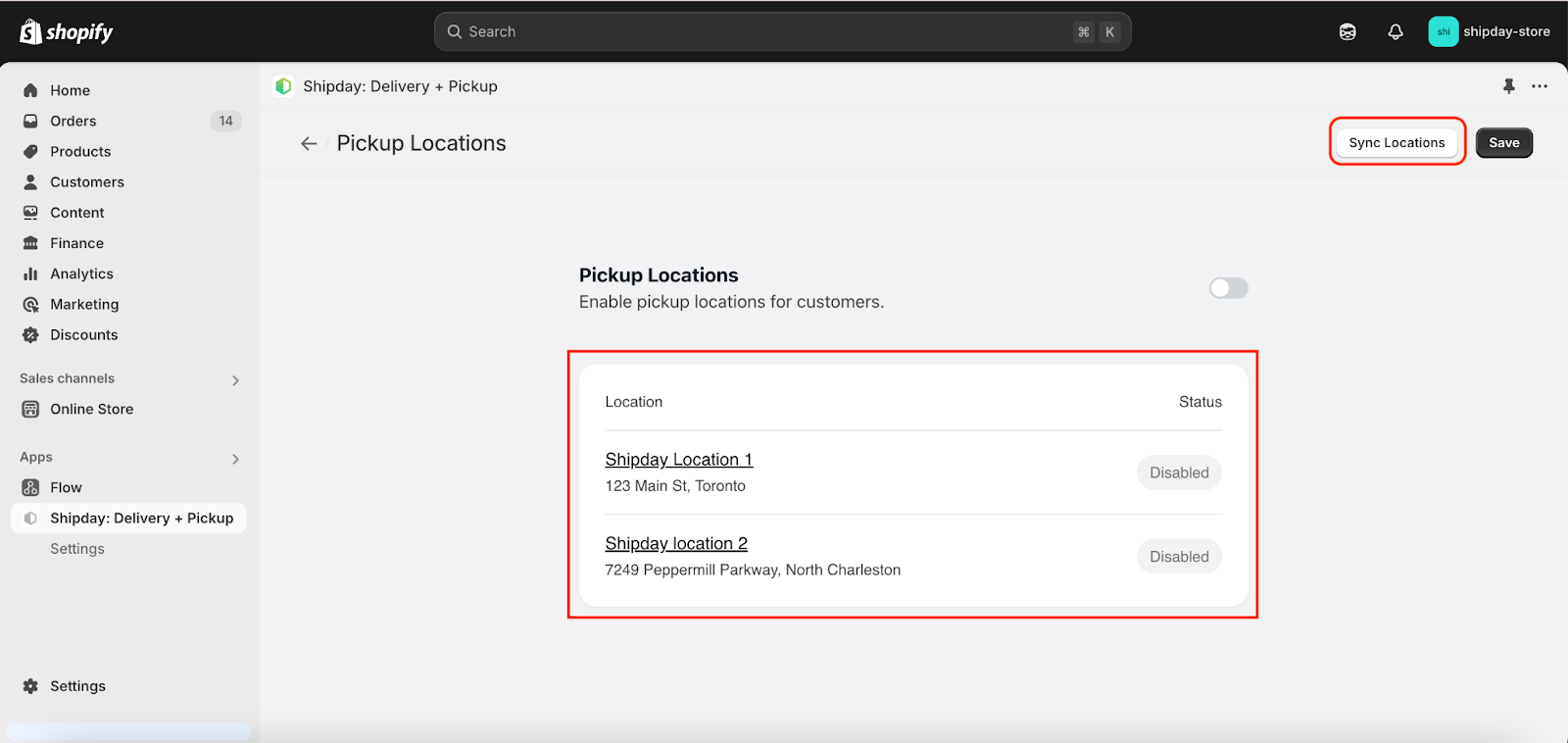
- Then from your Shipday: Delivery + Pickup app click on the Sync Locations button. It will automatically sync your Shopify location.
Configure specific location
- Click on the specific store location that you want to configure
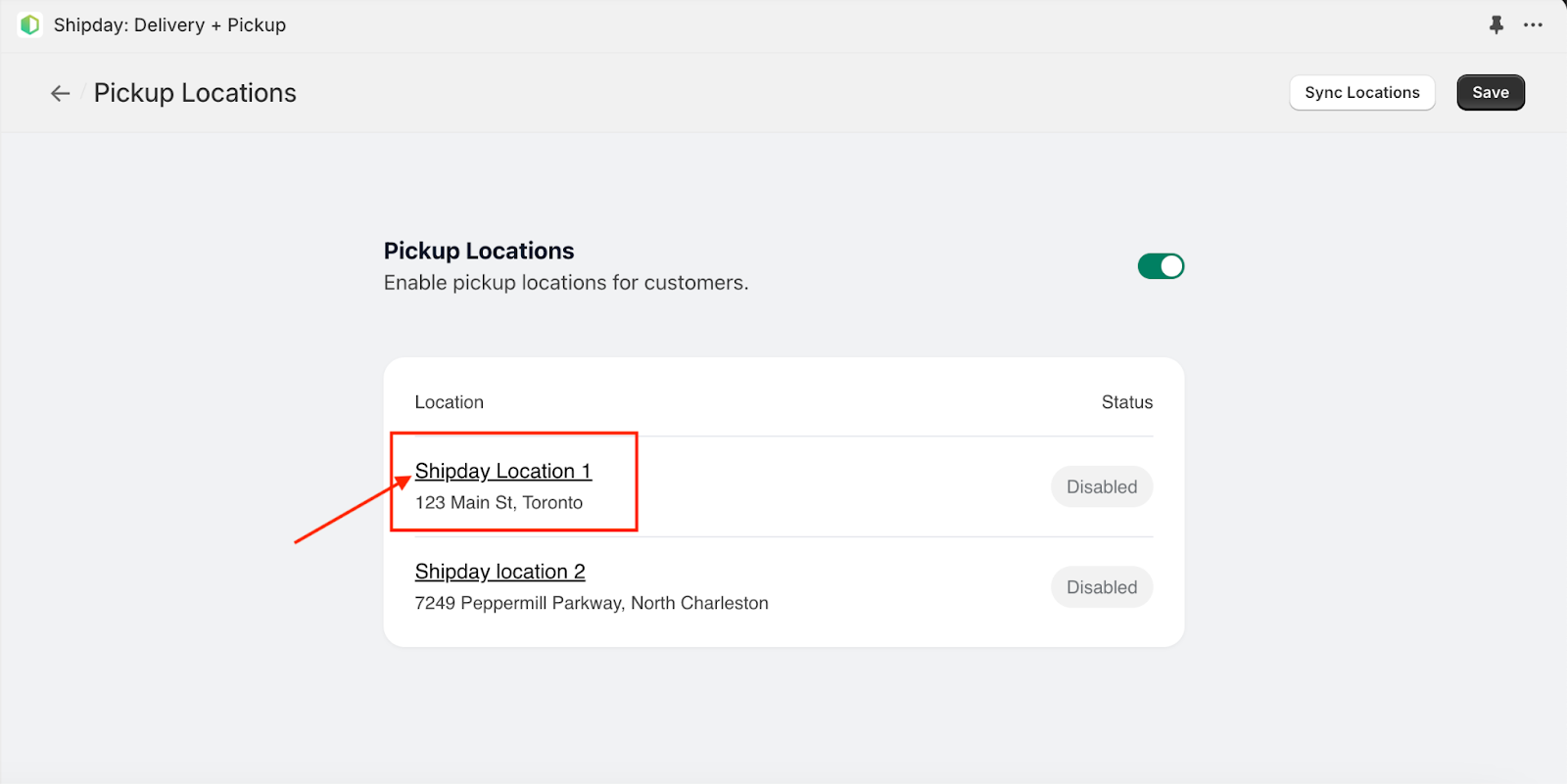
- Enable that pickup location by clicking on the Toggle button and click Save button.
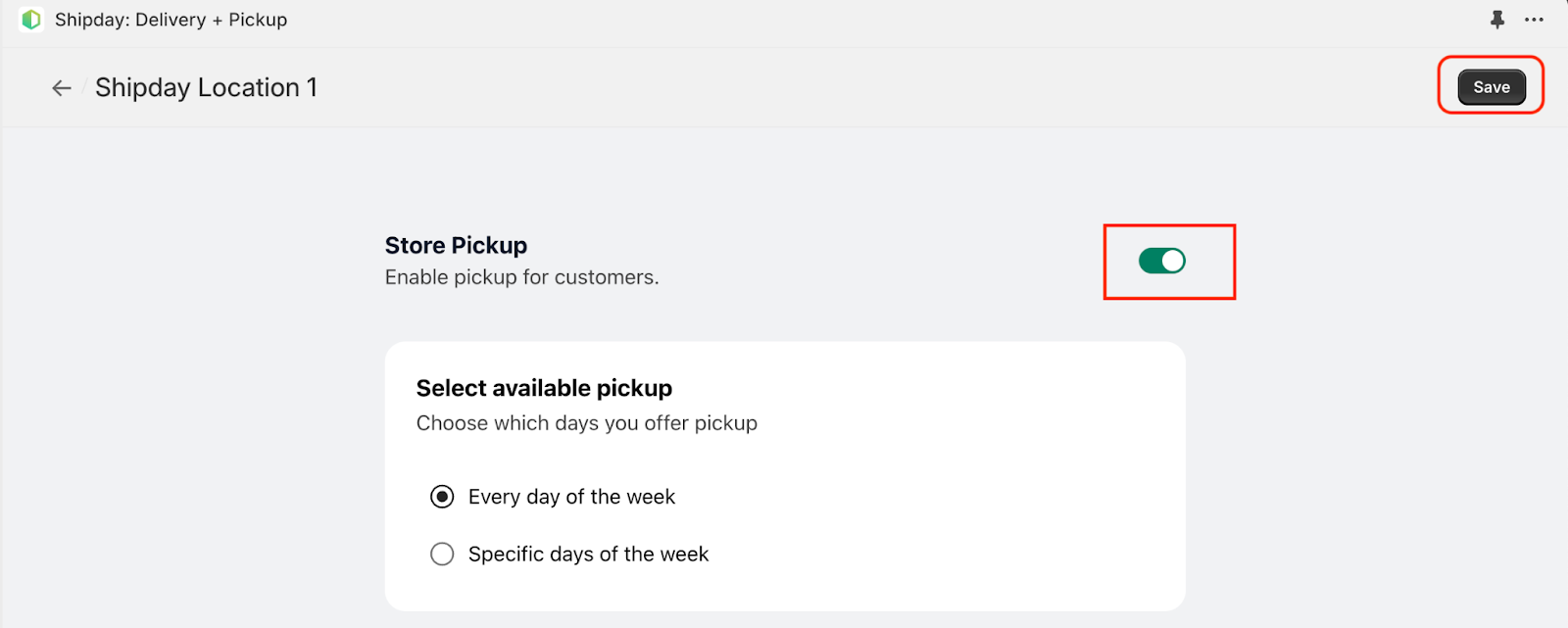
- Configure available pickup days
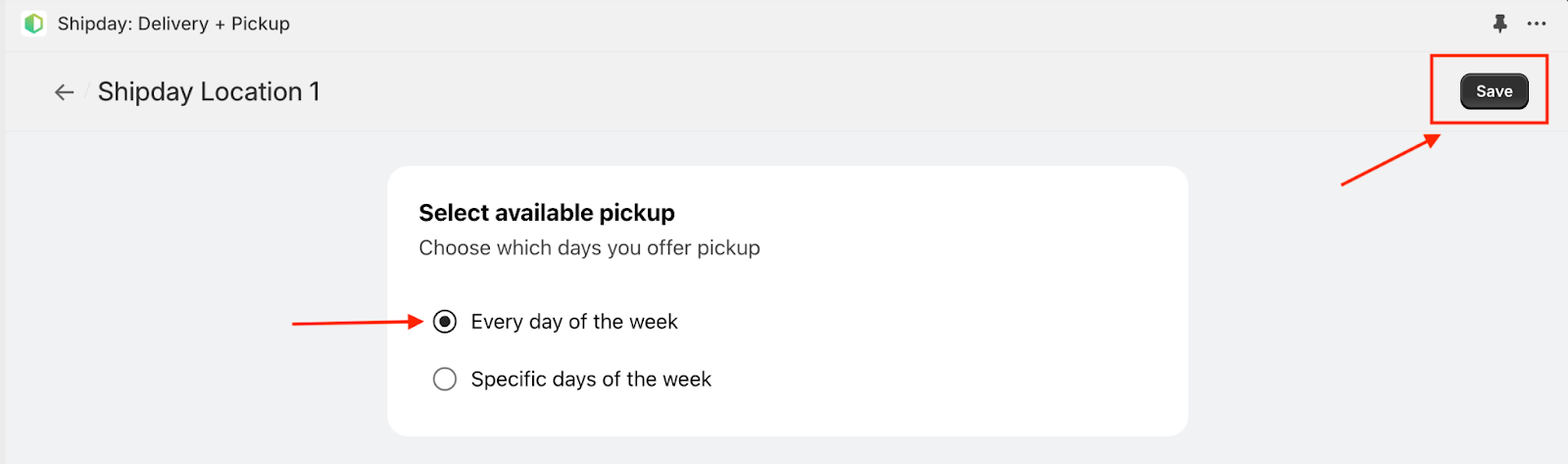
Every Day: If you want to enable pickup everyday of the week then select the first radio button as below and click Save button
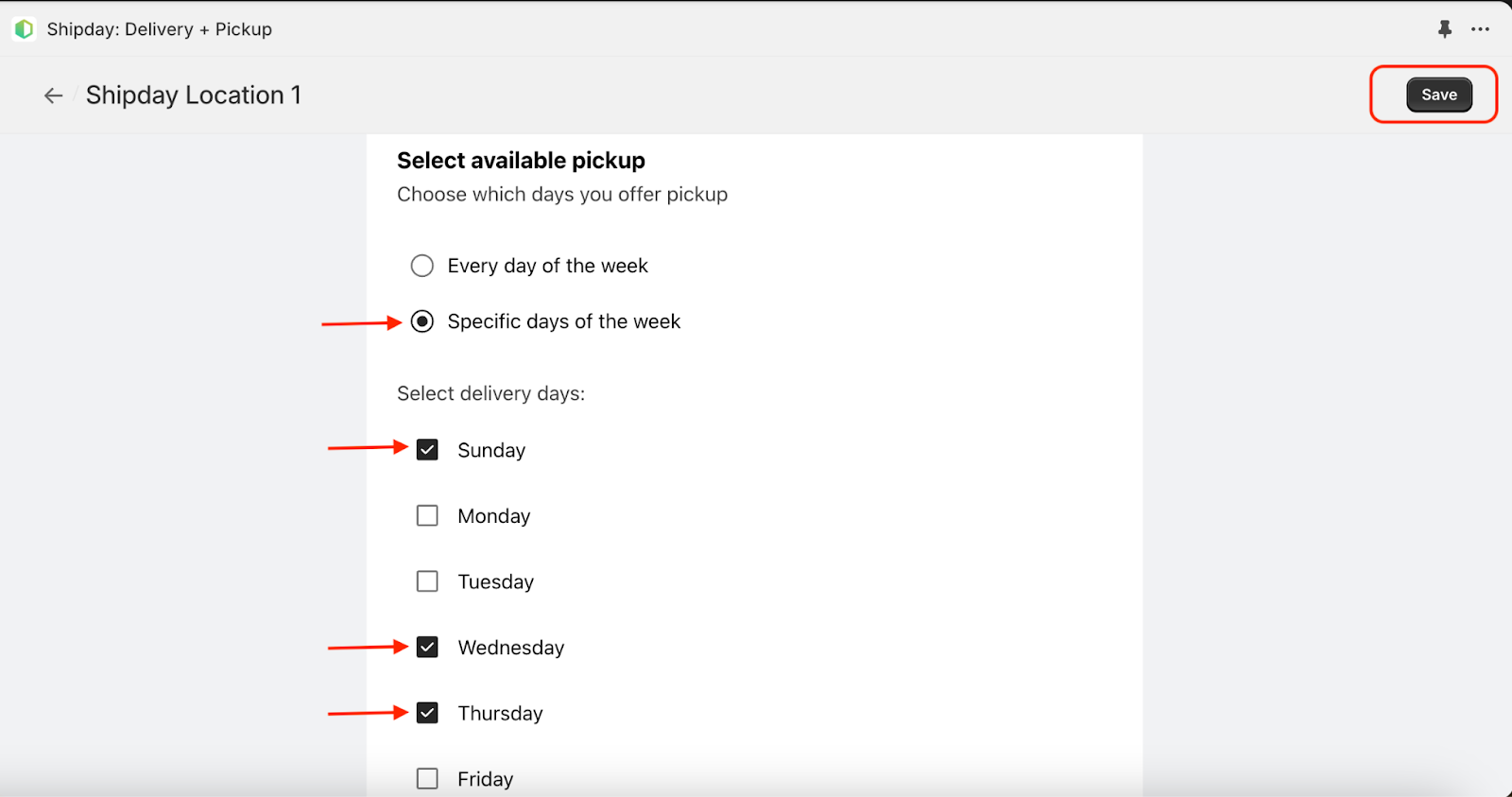
Specific Days: If you want to provide pickup only on specific days like only on Sunday, Wednesday and Thursday then configure like below:
Configure pickup slots
Pickup slots are time points when a customer will arrive at your store to collect her/his order.
If you configure your pickup slot From 10:00 to Until 14:00 with frequency every 60 minutes, then customers can select pickup time as 10:00, 11:00, 12:00, 13:00 or 14:00.
Same Slot:
If you want the same pickup slot on every available day, then click the first radio button.
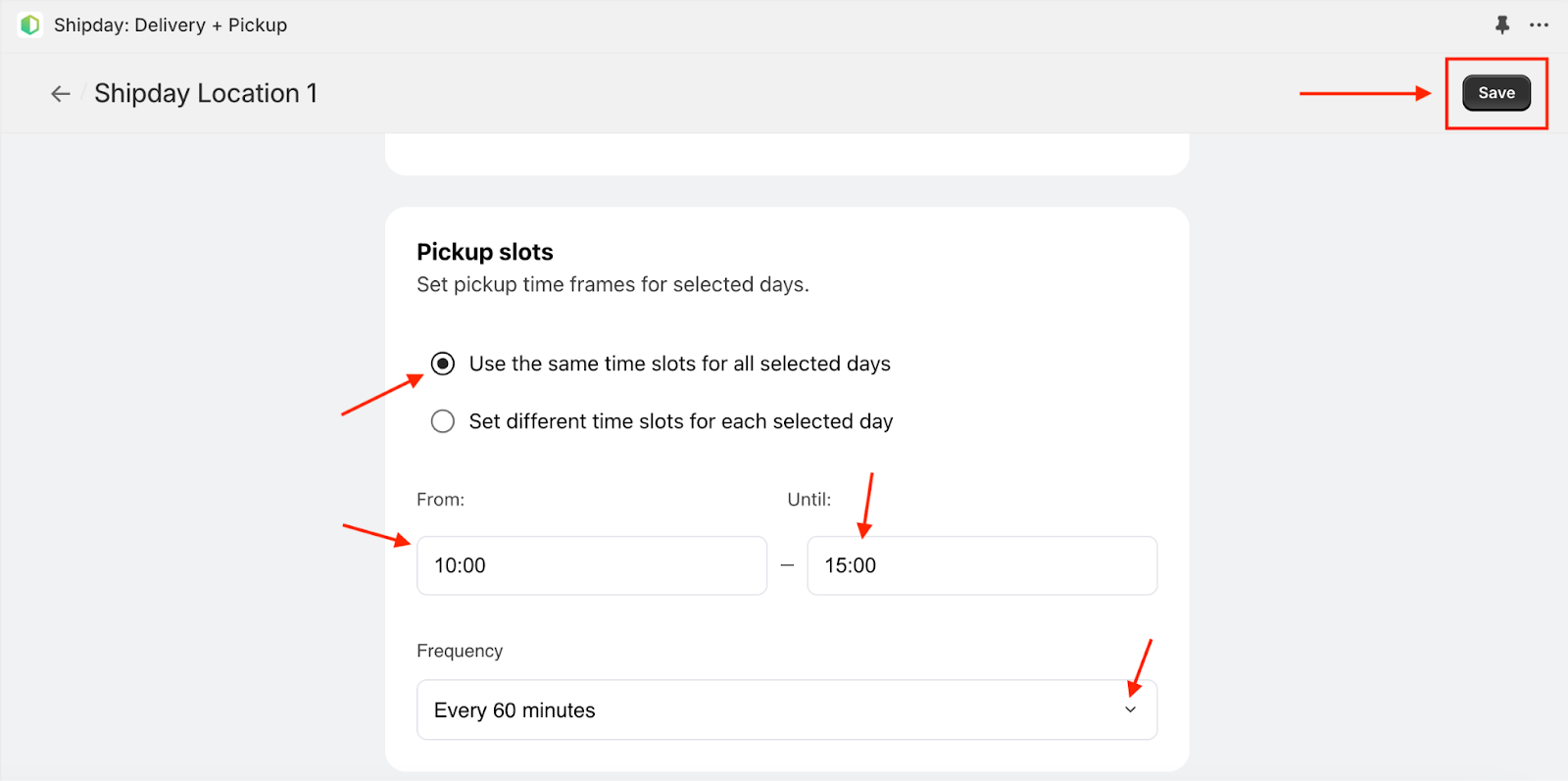
Then configure store pickup hour (From - Until) and select frequency as time gap between pickup slots.
Different slot in different days:
If you want different pickup slots on different days, then select the second radio button as below.
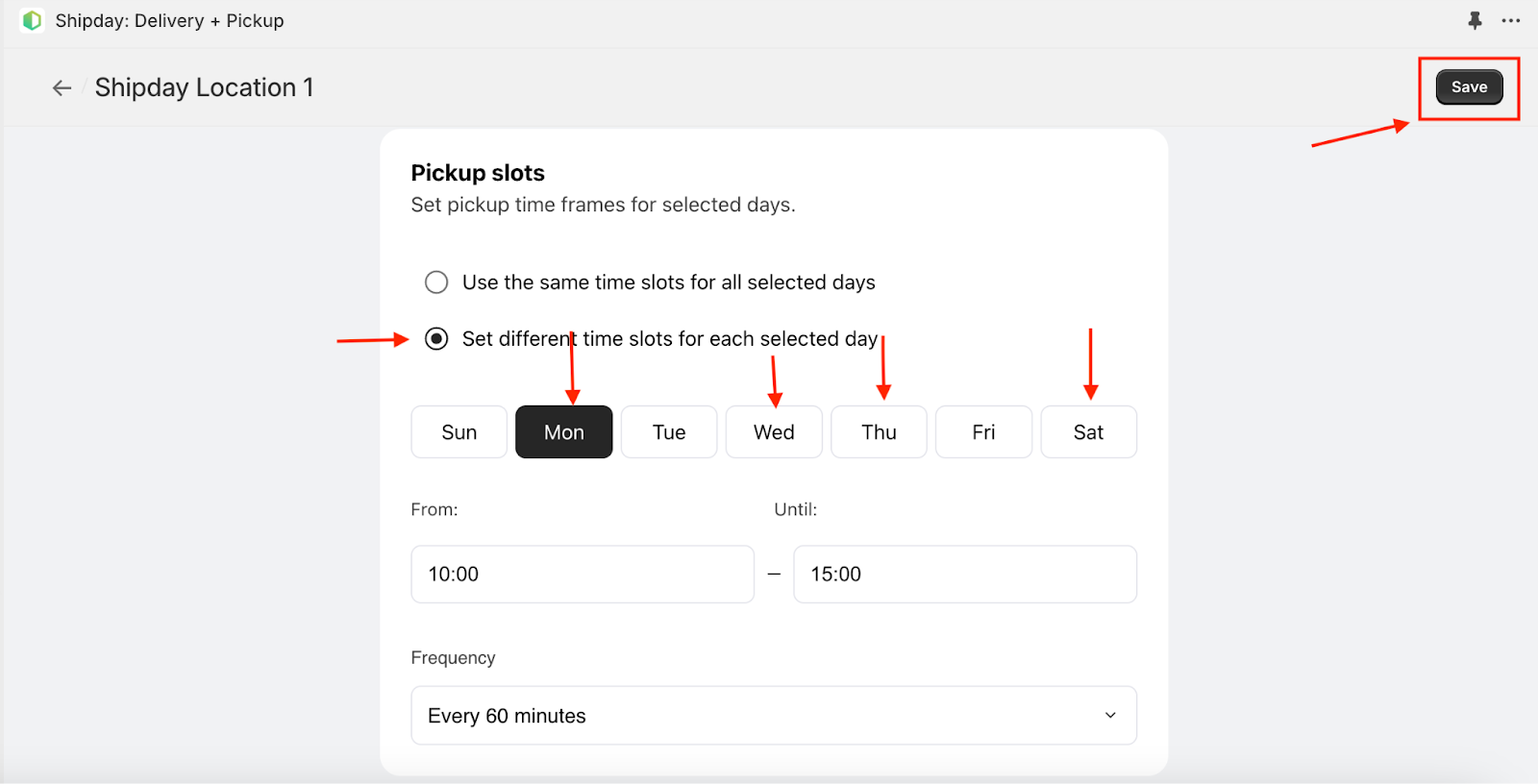
Then for EACH available day tab, configure pickup hour (From - Until) and frequency. Don’t forget to click the Save button at the top right corner.
Need help? Email support@shipday.com