Shopify setup guides
Connecting Shopify with Shipday
You need to have a Shipday account in order to connect with Shopify.
Collecting Shipday API key
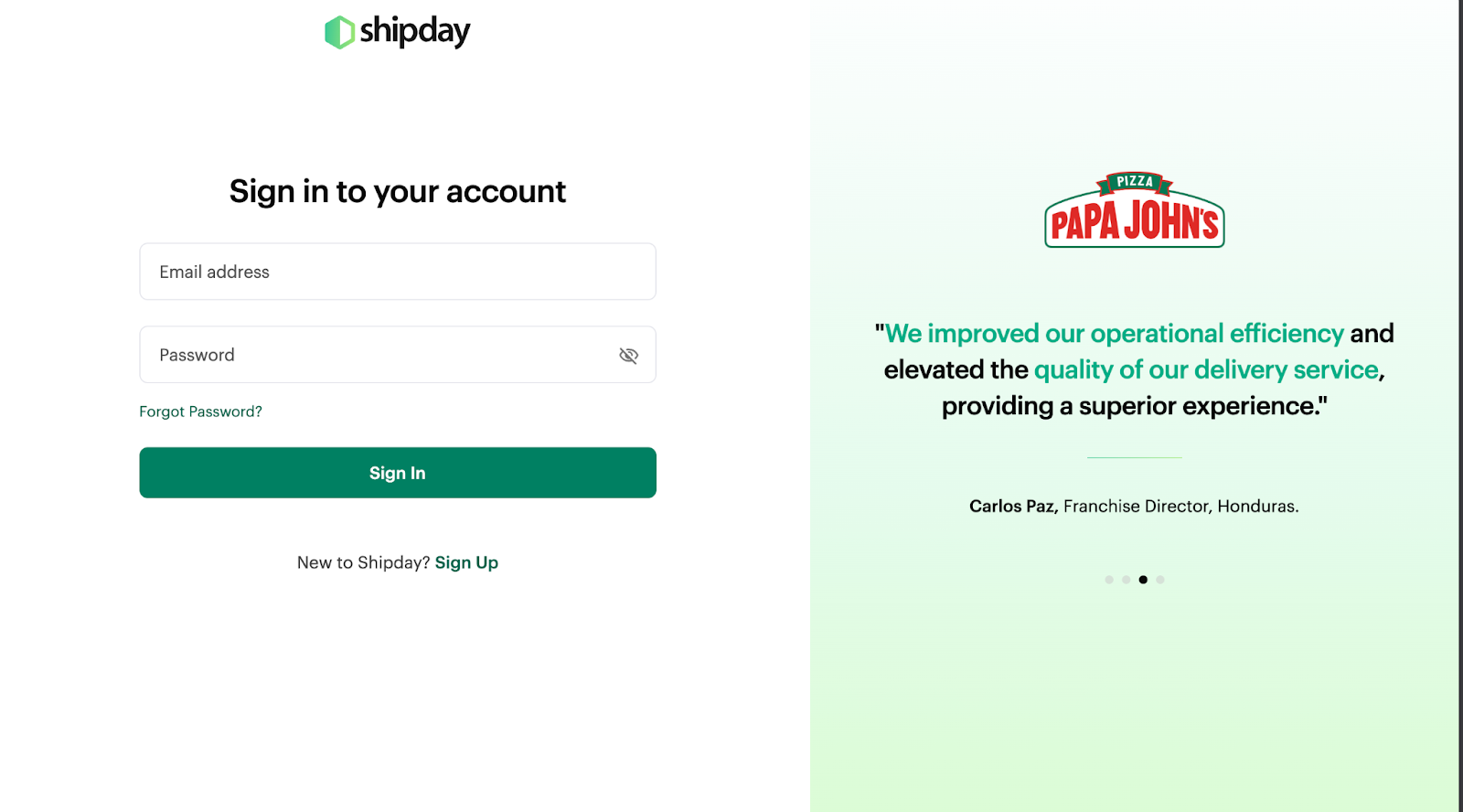
- If you already have an account, move on to dispatch.shipday.com and provide your credentials to log into https://dispatch.shipday.com
-
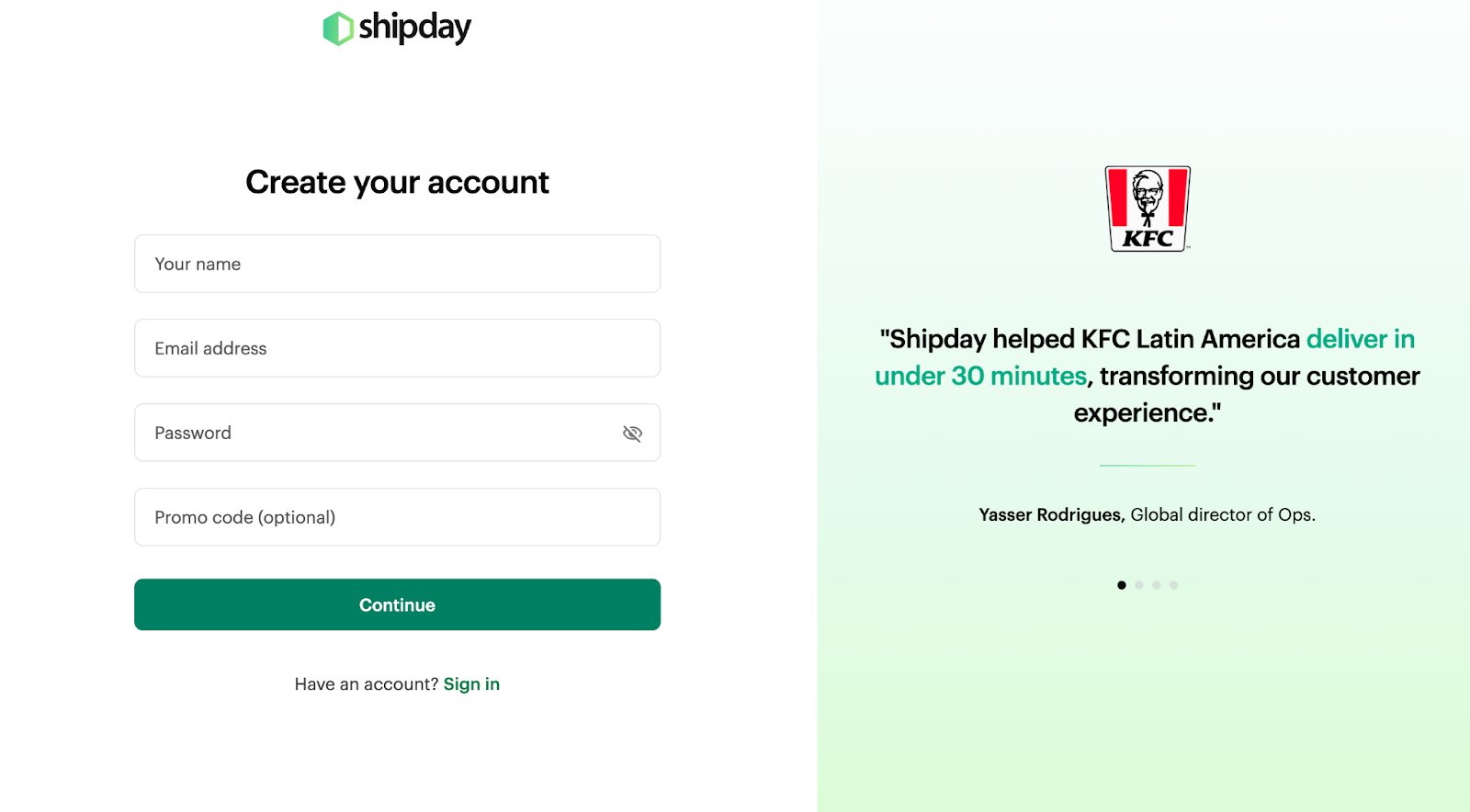
If you are not registered, create a new account at https://dispatch.shipday.com.
If you don’t have an account it’s free and easy to create one. Just go to https://dispatch.shipday.com/signUp
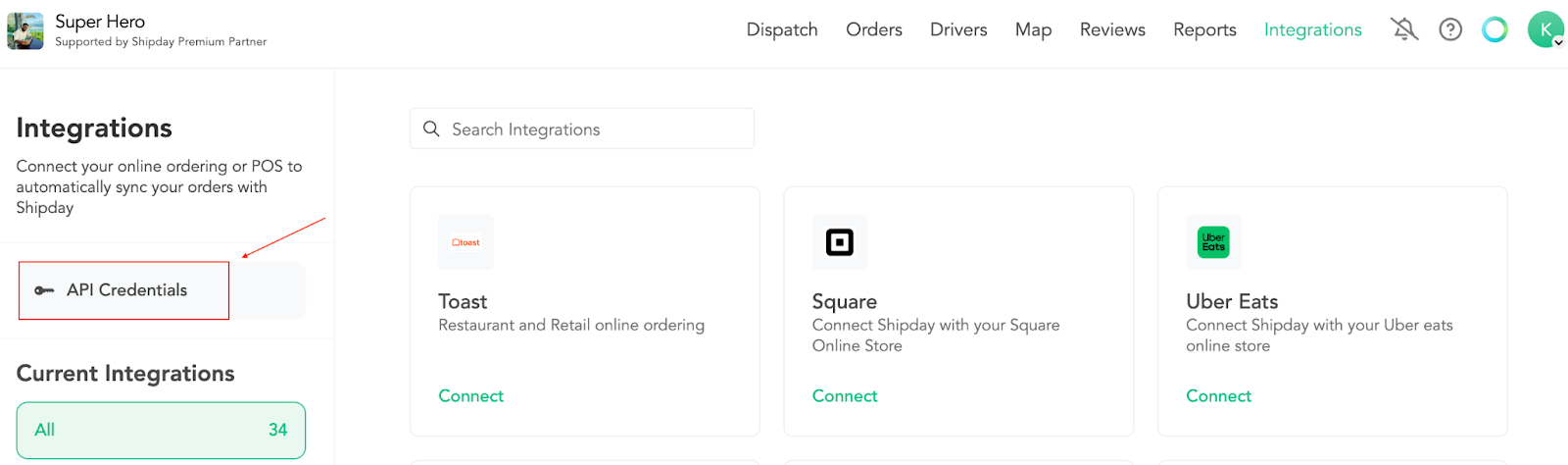
- After logging into Shipday Dashboard click the Integrations section on the top right corner of the screen.

- From the Integrations page click the API Credentials button.
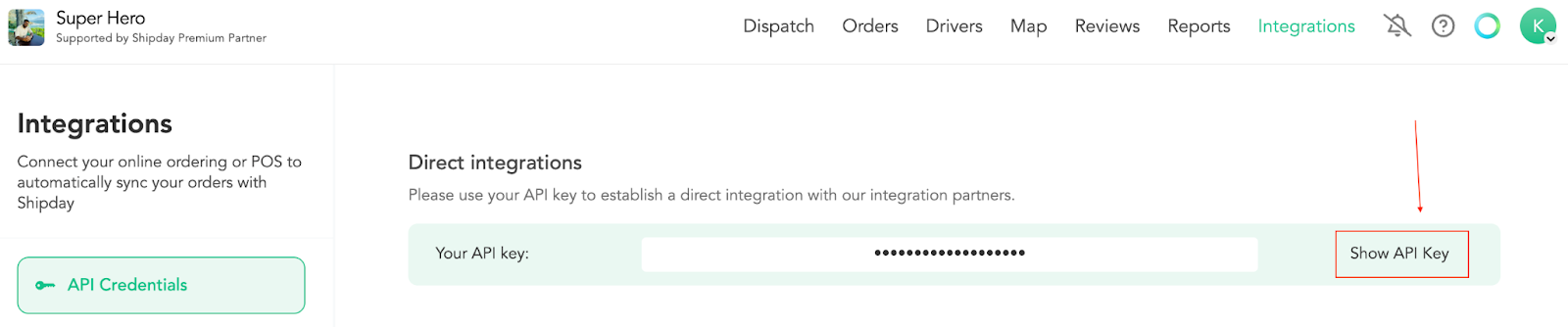
- Click the Show API Key and then Copy API Key button and copy the API Key into your clipboard.
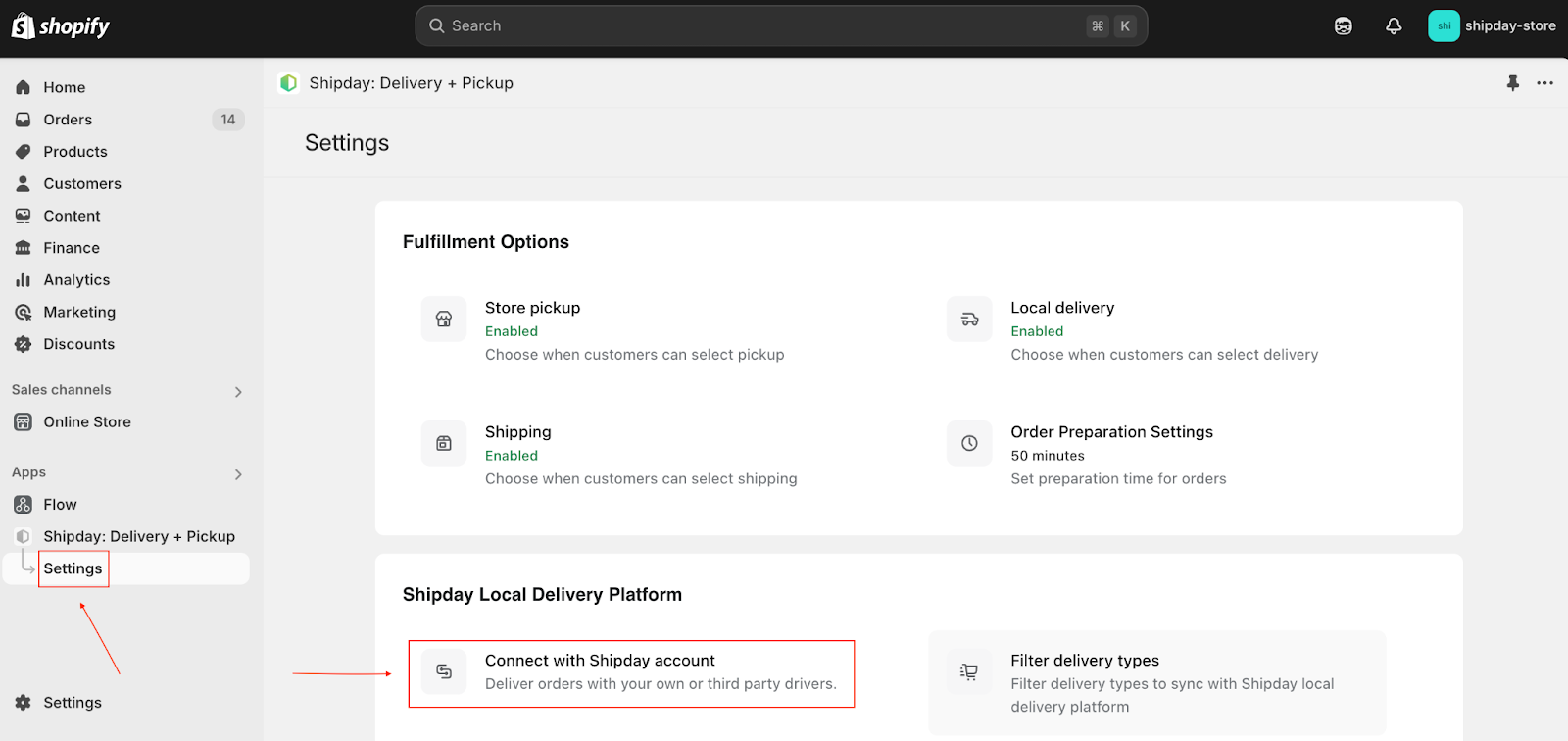
- Now go to your Shopify admin Shipday: Delivery + Pickup app, click Settings, then Connect with Shipday account
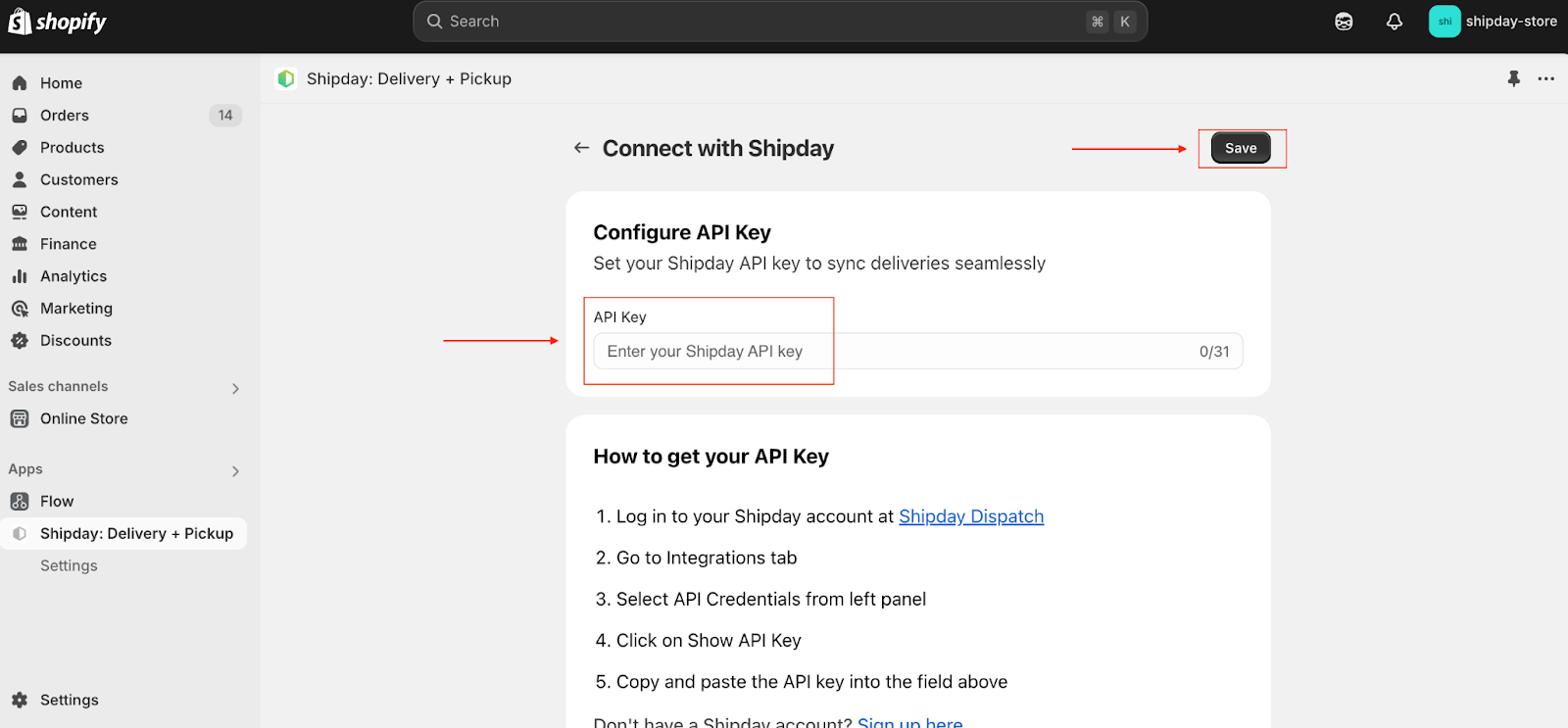
- Place the already copied API Key into the textbox and hit Save.
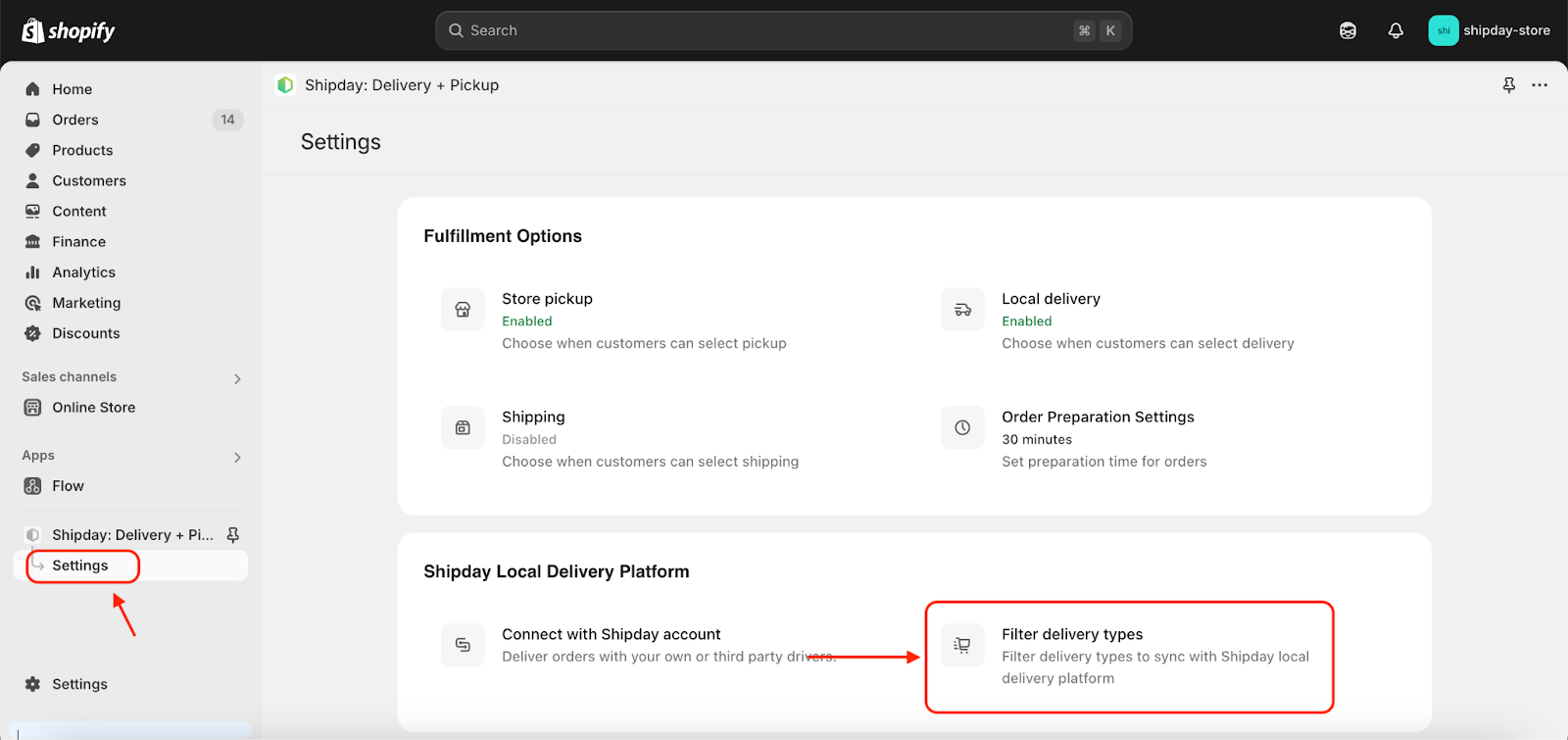
Sync your orders with Shipday
- Click Settings and then select “Filter delivery types”
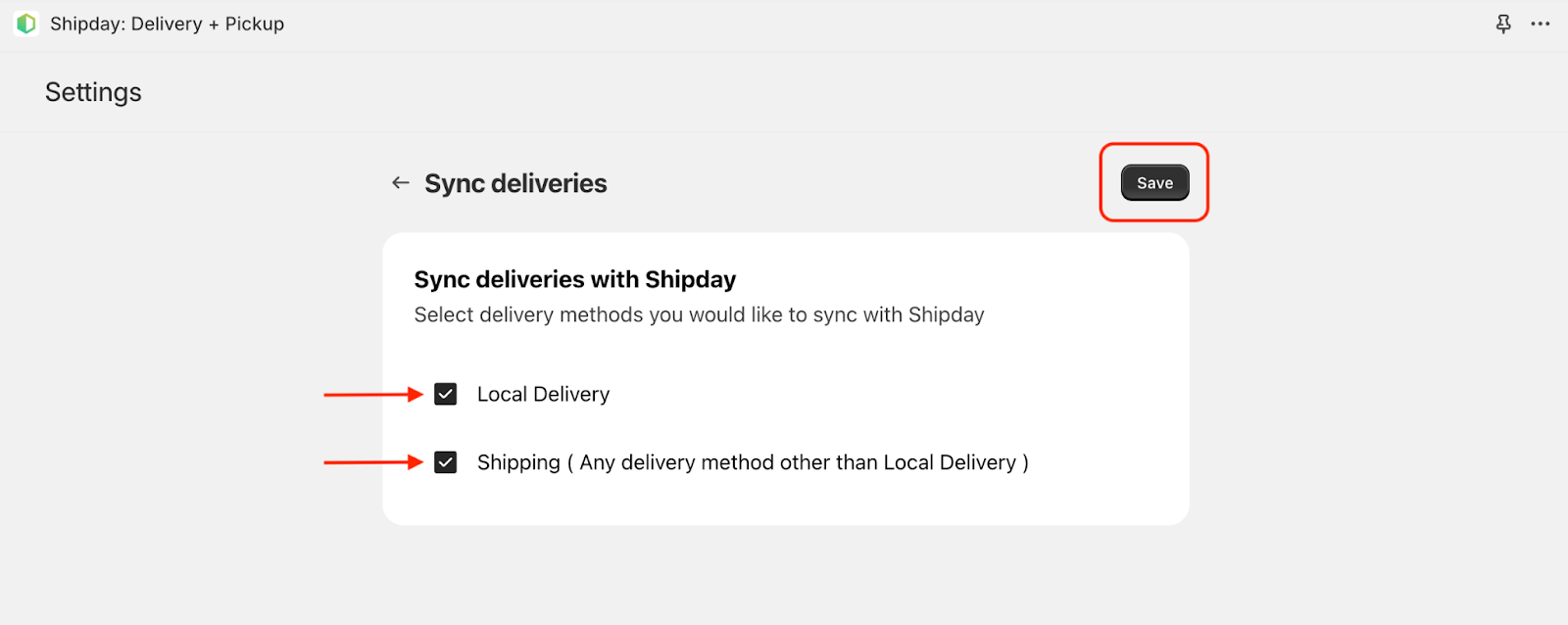
- Then select your order types that you want to sync with Shipday. If you want to sync only Delivery orders then click only “Local Delivery” otherwise select both and hit Save button.
Need help? Email support@shipday.com